
Find out why the print failed and fix it on the next one.
First Layer turns Claude, ChatGPT, Gemini or Grok into the friend who has tuned every printer in the makerspace. Tell it your printer, material and what went wrong, and get the likely cause, the setting to change first, a calibration step to confirm it and what the print really costs.
Get First Layer Print Tech for $5 Work out cost
$5 once · card, Apple Pay or Google Pay · download in a minute
Into more than one hobby? Get all 70 hobby skills for $19, this one included.
- One-time $5
- Instant email delivery
- 14-day refund
- Works in Claude, ChatGPT, Gemini and Grok
Fix plan: PETG stringing on a direct drive printer
0.4 mm nozzle · printing at 245°C · spool open for a month
PETGDirect driveOne change at a time
- FirstDry the filament: 65°C for 4 to 6 hoursWet PETG strings and pops whatever the settingsLikely
- TempPrint a temperature tower, 250 down to 230°CPick the coolest step with good layer bondingTest
- RetractRetraction 0.8 mm at 35 mm/sDirect drive: 0.5 to 1.5 mm. Bowden: 3 to 6 mmSetting
- TravelTravel 150 mm/s or more, avoid crossing perimetersLess time over open air, fewer stringsSetting
- CheckPrint a retraction test before the real partPETG always strings a little: a heat gun pass cleans wispsConfirm
What a good print tech keeps in their head
One skill, six jobs. Claude, ChatGPT, Gemini or Grok picks the right one from what you ask.
Settings by material
Starting temperatures, speeds, cooling and retraction for PLA, PETG, ABS, ASA, TPU, nylon and resin.
Calibration in order
Bed levelling, Z offset, e-steps, flow, pressure advance and temperature towers, step by step.
Failed print fixes
First layer, warping, stringing, under-extrusion, layer shifts, clogs and spaghetti: cause and fix.
Cost and time
Filament, power and wear per print, and how to price prints if you sell them.
Design for printing
Orientation, supports, overhangs, wall counts, tolerances for fits and strength tips.
Safe printing
Ventilation for ABS, ASA and resin, resin handling, fire safety and safe unattended printing.
Ask it like you'd ask the expert at the makerspace
It starts with the cause that's most likely and cheapest to check, not a list of 20 settings.
Start with a clean plate and the Z offset (high confidence)
On textured PEI, most PLA adhesion problems come from finger oils or a first layer that isn't pressed in enough.
- Wash the plate with dish soap and warm water, rinse and dry with a clean towel. Wiping with alcohol alone moves the oil around. Handle it by the edges after.
- Check the first layer. Lines should be slightly flattened and touching, with no gaps. Lower the nozzle 0.02 mm at a time until they are.
- Bed at 55 to 65°C for PLA, first layer at 20 to 30 mm/s, part cooling fan off for the first 2 or 3 layers.
- For big flat parts, add a 5 mm brim and keep the printer out of drafts from windows, fans or air vents.
If corners still lift
That's shrinkage pulling the corners up as layers cool. Try a slightly warmer bed, slightly less part cooling on the lower layers, or rounded corners in the design.
Example answer from the full skill. Your answers depend on what you ask.
Honest about what works
Printing forums are full of fixes that hide the real problem. First Layer starts with the cause.
- One change at a timeIt changes one setting, tests it, then moves on, so you know what fixed it.
- Dry filament firstWet filament causes stringing, popping and weak parts. It checks this before your settings.
- Fumes are realABS and ASA give off styrene, and resin is a skin and lung irritant. It covers ventilation and gloves.
- Your printer, your numbersPublished settings are starting points. It gives a calibration test to find yours.
Up and running in two minutes
No app to learn and nothing to install on your computer. It lives inside Claude, ChatGPT, Gemini or Grok.
Buy once
Pay $5 by card, Apple Pay or Google Pay. Your download link arrives by email in about a minute.
Add it to Claude, ChatGPT, Gemini or Grok
Upload the ZIP under Skills in Claude, or the unzipped folder in Gemini. It takes about 30 seconds. In Grok, upload the ZIP, or paste the included paste-in file into a new skill. In ChatGPT, add the included paste-in file to a Project.
Just ask
"Best PETG settings for my printer?" "Why does my print shift halfway up?" "How much should I charge for this print?"
Pick your app for the exact clicks
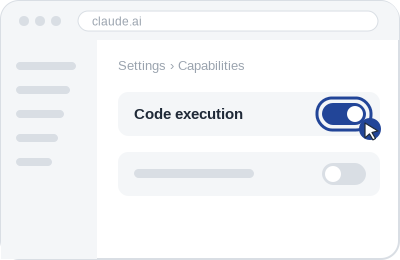
1In Settings, then Capabilities, turn on code execution.
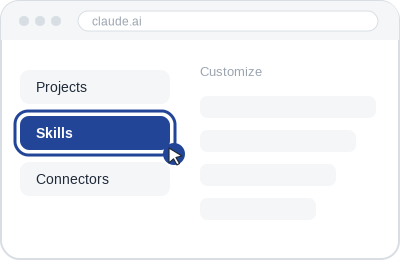
2Open Customize, then Skills.
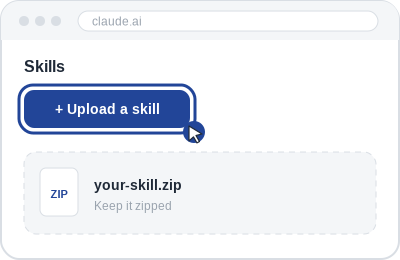
3Click +, choose Upload a skill, pick the ZIP. Keep it zipped.
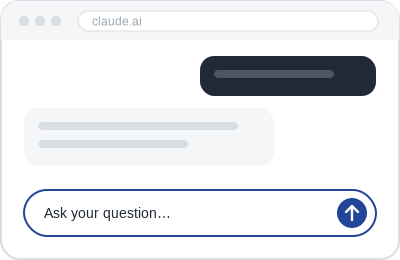
4Start a new chat and ask. Claude picks up the skill.
Works on every Claude plan, including the free one. Free plans have lower usage limits.
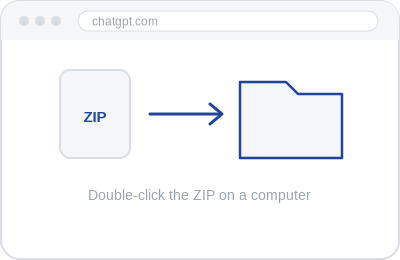
1On a computer, unzip the download and find ANY-AI-PASTE-VERSION.txt.
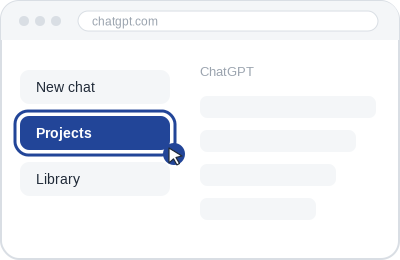
2In ChatGPT, open Projects and make a new project.
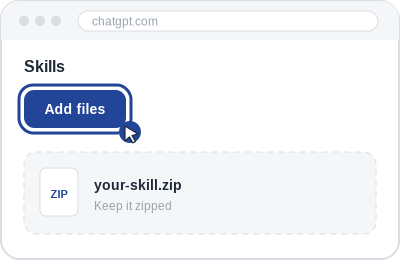
3Add the .txt file to the project. In its instructions, type: Follow the attached file.
4Start a chat in that project and ask. On a Business, Enterprise or Edu plan, you can upload the ZIP under Skills instead.
Personal ChatGPT plans (Free, Plus, Pro) don't have a Skills page yet, so you use the paste-in version in a Project. On a Business, Enterprise or Edu plan, go to chatgpt.com/skills, choose Add, then Upload from your computer.
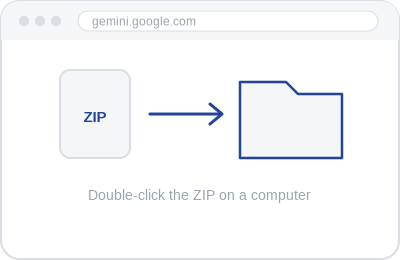
1On a computer, unzip the download. You get a folder.
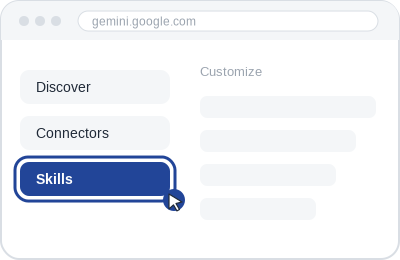
2At gemini.google.com, open Customize, then Skills.
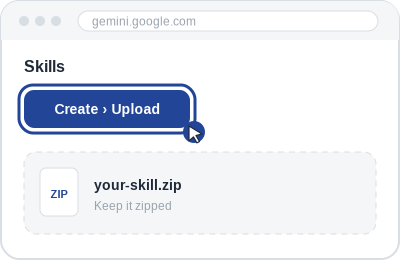
3Choose Create, then Upload, then folder. Pick the unzipped folder.
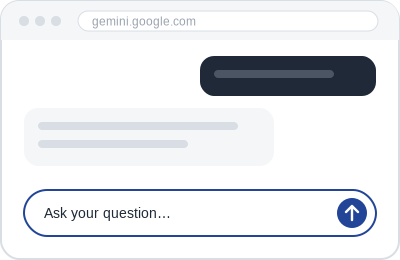
4Start a new chat and ask.
Gemini takes the unzipped folder, not the ZIP. Menus in Gemini change often, so names may differ slightly.
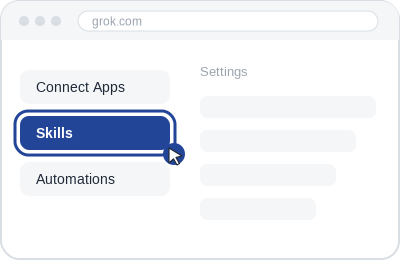
1At grok.com, open Settings, then Skills.
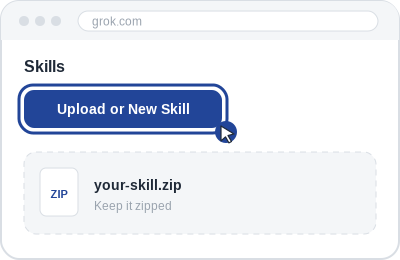
2If you see Upload, pick the ZIP. If you only see New Skill, use the next step.
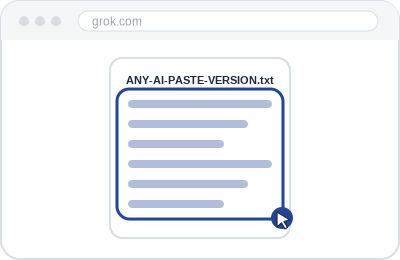
3New Skill: name it, then paste the text of ANY-AI-PASTE-VERSION.txt (below the line of equals signs) into Instructions.
4Save it, start a new chat and ask.
Some Grok plans upload the ZIP; others show a New Skill form, where you paste the skill text in. Menus in Grok change often, so names may differ slightly.
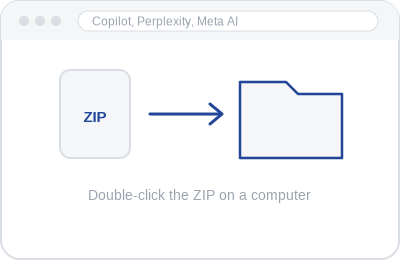
1No Skills page? Unzip the download on a computer.
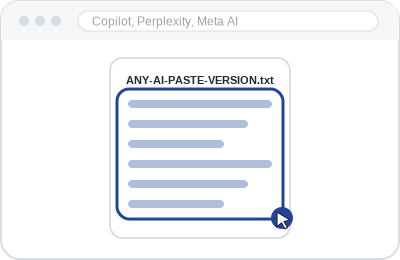
2Open ANY-AI-PASTE-VERSION.txt and copy everything.
3Paste it into a new chat, then ask your question.
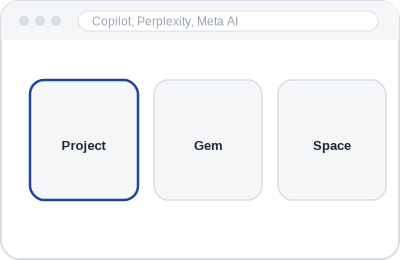
4To keep it on, add it to a ChatGPT Project, Gemini Gem or Perplexity Space.
Using Claude Code, Codex, Cursor or another coding agent? Unzip it into the skills folder, for example unzip first-layer-print-tech.zip -d ~/.claude/skills/
On your phone? Go ahead and buy: the download link goes to your email and works for a year. Adding a skill is easiest from a computer, in a web browser or the desktop app, so open that email there when you're ready. Want to try it on your phone today? Open the ZIP, copy ANY-AI-PASTE-VERSION.txt into any chat app, and ask.
Start with the free Fail Check
A small skill that diagnoses one failed print from what you saw and gives the likely cause, the first fix to try and a quick test to confirm it.
- Covers the most common print failures
- Causes ranked from cheapest to check
- One test print to confirm the fix
Get First Layer Print Tech
Pay once, use it whenever you need it. Includes the free Fail Check too.
How to add it
Upload the ZIP under Skills in Claude, or the unzipped folder in Gemini (in Grok, upload the ZIP or paste the paste-in file into a new skill; in ChatGPT, add it to a Project), then start a new chat and try: "My PLA prints are stringy between parts. I'm printing at 215°C on an Ender 3 style printer. What should I change?"
See the clicks for your app. Every download also comes with a paste-in version for any other chat, and a Start Here PDF.
Step-by-step guides with pictures: Claude · ChatGPT · Gemini · Grok
First Layer Print Tech
Dial in settings, fix failed prints and price your work.
$5 one time
- Starting settings for 8 materials
- Calibration steps in the right order
- Fixes for 20+ print failures
- Cost, time and pricing help
- Design for printing tips
- Ventilation and resin safety guide
- Updates for a year
Card, Apple Pay or Google Pay through Stripe. Taxes calculated at checkout. 14-day refund.
Giving it as a gift? Buy it, forward the email, and print a gift card.
See a real answer from the full skill
You ask: My PLA won't stick on a textured PEI sheet. The corners lift on big flat parts. What do I check?
Start with a clean plate and the Z offset (high confidence)
On textured PEI, most PLA adhesion problems come from finger oils or a first layer that isn't pressed in enough.
- Wash the plate with dish soap and warm water, rinse and dry with a clean towel. Wiping with alcohol alone moves the oil around. Handle it by the edges after.
- Check the first layer. Lines should be slightly flattened and touching, with no gaps. Lower the nozzle 0.02 mm at a time until they are.
- Bed at 55 to 65°C for PLA, first layer at 20 to 30 mm/s, part cooling fan off for the first 2 or 3 layers.
- For big flat parts, add a 5 mm brim and keep the printer out of drafts from windows, fans or air vents.
If corners still lift
That's shrinkage pulling the corners up as layers cool. Try a slightly warmer bed, slightly less part cooling on the lower layers, or rounded corners in the design.
Into more than one hobby? The Skill Pass gets you all 70 hobby skills, this one included, for $19.
New to AI skills?
First Layer is a skill: a set of expert instructions you add to your own Claude, ChatGPT, Gemini or Grok account, so it answers like a 3D printing technician who knows the craft.
- Using Gemini? Unzip it and upload the folder on its Skills page. Using Grok? Under Settings, Skills, upload the ZIP or paste the paste-in file into a new skill. Using ChatGPT? Add the included paste-in file to a Project.
- New to all of them? Claude is an AI assistant made by Anthropic. Make an account at claude.ai: skills work on every Claude plan, including the free one, with code execution turned on in Settings, Capabilities.
- Try the free Fail Check skill first. If you like it, the full skill is one purchase.
Not ready for an AI app? The free 3D print cost calculator on this site works in any browser, no account needed.
Free 3D printing tools
No sign-up, they run in your browser.
Made by Nic Hubert, What If Labs
I run What If Labs from British Columbia, Canada. I build each skill with AI help and test it on real questions, and a separate reviewer checks it before it goes on sale. If it doesn't do what this page says, email me at hello@whatiflabs.ai and I'll fix it or refund you.
No reviews yet: this store is new. Tell me how it went and I'll use it to make the skill better.
Questions
Which printers and slicers does it know?
FDM printers in general, including bed-slingers, CoreXY and enclosed printers from the common brands, and resin (MSLA) printers. It knows the settings in popular slicers like PrusaSlicer, OrcaSlicer, Bambu Studio and Cura, and firmware like Marlin and Klipper. It isn't affiliated with any of them.
Can it give me exact settings for my printer?
It gives tested starting points for your material and printer type, then the calibration prints to find your exact numbers. Your filament brand, nozzle and room change the best settings.
Does it help with design?
Yes: orientation, supports, overhangs, wall and infill choices, tolerances for press fits and moving parts, and making parts stronger along the right axis. It doesn't model the part for you, but it can review a design you describe or share.
Is resin printing safe at home?
With care. Wear nitrile gloves and eye protection, ventilate the room and keep resin and alcohol away from kids and pets. Cure waste resin and wash water in sunlight or UV before disposal, and follow the resin's safety data sheet. It covers all of this.
What do I need to use it?
A Claude, ChatGPT, Gemini or Grok account. In Claude it works on any plan, including the free one, with code execution turned on (Settings, Capabilities). Free accounts have lower usage limits, so long planning sessions go further on a paid plan. It works in Claude on the web, the desktop app and Claude Code. In Gemini and Grok, upload it on the Skills page. In ChatGPT, personal plans (Free, Plus, Pro) don't have Skills yet, so you add the included paste-in file to a ChatGPT Project; Business, Enterprise and Edu plans can upload the ZIP under Skills. Coding agents that read SKILL.md files work too. Using Copilot, Perplexity, Meta AI or another chat with no Skills page? Every download includes a paste-in version (ANY-AI-PASTE-VERSION.txt) that works in any AI chat.
What if it doesn't work for me?
Email hello@whatiflabs.ai within 14 days of buying and we'll refund you in full. No forms, no questions.
How is this different from just asking an AI?
A general AI answer is often vague or skips steps. The skill gives your AI an expert's method: what to ask you first, the checklists and calculations to run, and the mistakes to warn you about. You get consistent, specific answers instead of a different guess each time.
Do I pay every month?
No. It's a one-time price, and updates to the skill are free.
Can I get a refund?
Yes. Every purchase comes with a 14-day refund, no questions asked. Reply to your receipt email and we'll take care of it.
What if it gets something wrong?
It shows its working, so you can check numbers and dates. Tell it what's off and it will correct itself. For anything where a mistake costs money or safety, double-check before you act, as you would with any advice.
Is my information private?
The skill runs inside your own Claude, ChatGPT, Gemini or Grok account, and we never see your chats. When you buy, Stripe handles the payment and we keep your email and order so we can send the download. The terms and privacy page has the details.